Open Accounting Connector check list
-
Please read before connecting
Please install Open Accounting Connector on the same PC/Server that MYOB is on.
Connecting to your MYOB Company
-
How to connect to your MYOB Company
Please follow steps below to configure your MYOB company to the Open Accounting Connector application.
Click each step below for a pictorial view


Advanced Technical Information / Options
-
Automatic Extractions on Servers
Your Open Accounting Connector application may be setup to retrieve data automatically at a predefined schedule, this functionality relies to be logged on at the scheduled time. Due to the nature of Servers, it may rarely be logged into. So if the Open Accounting Connector application is installed on a Server, extractions may not always perform automatically. To enable this feature a task scheduler would have to be created.
To create a task scheduler please go to the installation path of Open Accounting Connector, usually held in C:\Open Accounting Connector_xxx\ Open the taskSchedule.bat file and follow the instructions.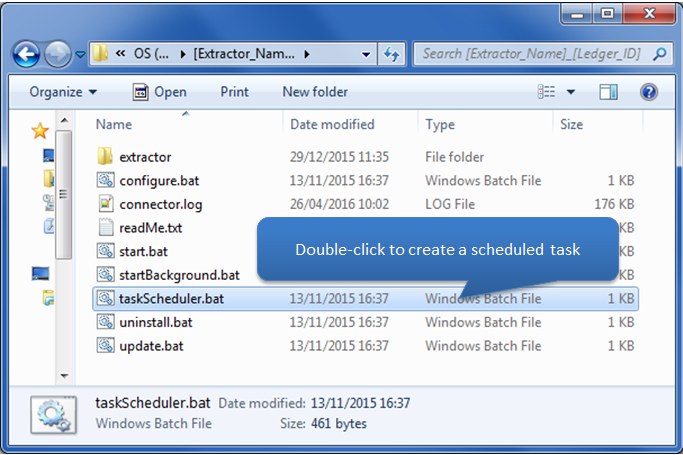
-
Cannot see Company Folder Location
The TAS Company folder location is usually a "Hidden" folder within the Windows Explorer. To allow "Hidden" folders to be seen please follow the steps below depending on your Operating System. Note to open the Windows Explorer please press the Windows Key + E on your keyboard.

Error Messages
-
Error Information
If after clicking the Test Connection button an error message appears it is most likely that one (or more) of the credentials entered are incorrect. Below are a few examples of the typical errors and how to handle them:
- Incorrect username/password:
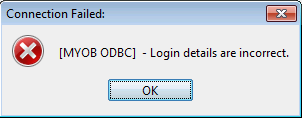
If this error appears, the username or password is incorrect . - Incorrect Server/ Server not located

If this error appears it could also be an indication that the database file selected is incorrect. Remember this is usually in the C:\ProgramData\MYOB_Folders folder and has .myo at the end of the file name. Please see step 2 on how to locate the company file.
Alternatively if you cannot see the ProgramData folder please see Hidden Folder section in Advanced above. - Database Error:

If this error, or a similar phrased error appears the incorrect ODBC has been selected name is incorrect. Please double check the name of the ODBC driver; conventionally it begins with 'MYO' followed by the country 'US' or version '16', a combination of the two, or simply "MYOB_ODBC".
- Incorrect username/password: